You press the power button and nothing happens. Or you see the manufacturer's logo but then the screen goes black. Or your computer keeps restarting endlessly without ever reaching Windows. It's ...
You press the power button and nothing happens. Or you see the manufacturer's logo but then the screen goes black. Or your computer keeps restarting endlessly without ever reaching Windows. It's a scary moment, because your first thought is: is my computer broken? Are my files gone?
The honest answer: usually not. In about 70 percent of cases, it's a software problem that can be fixed without losing anything. But you do need to follow the right steps. Let's walk through them, from simplest to most complex.
Step 1: Check the basics
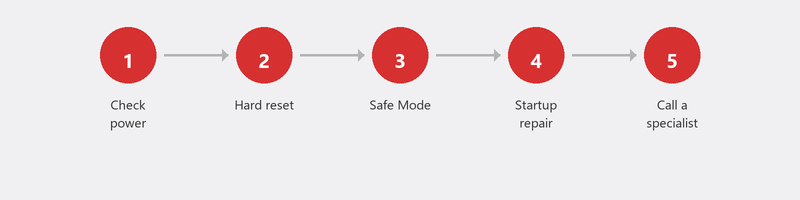
It sounds almost too simple, but start here. Is the plug properly in the outlet? Try a different outlet. Using a laptop? Connect the charger and wait five minutes before trying again. A completely dead battery can prevent a laptop from responding at all, even with the charger connected. Also try starting the laptop with the charger plugged in but without the battery (if it's removable).
Step 2: Computer does absolutely nothing (no lights, no sound)
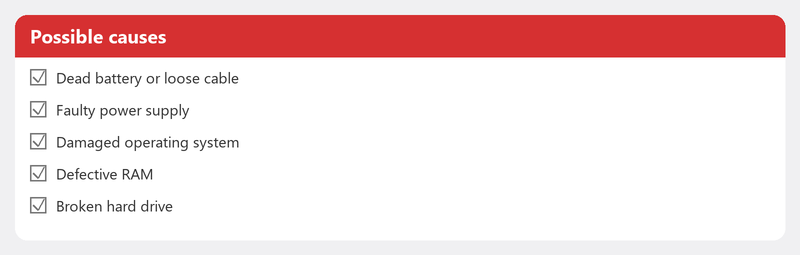
If absolutely nothing happens when you press the power button -- no lights, no fan noise, no beep -- then it's probably a hardware problem. The power supply could be faulty, there could be a loose cable, or the motherboard could have an issue. On a desktop, you can check if the power cable on the back is securely connected and if the switch on the power supply is set to "I." On a laptop, there's less you can do yourself, besides checking the charger and outlet.
This type of problem unfortunately cannot be solved remotely. It requires physical examination of the hardware.
Step 3: Computer starts but the screen stays black
You hear the fan spinning and might see lights, but the screen stays pitch black. This could be a problem with your monitor, the graphics card, or the connection cable. Try the following:
- Connect an external monitor (if you have one).
- Use a different cable (HDMI, DisplayPort).
- On a laptop: press the key combination for switching displays (usually Fn + F4 or Fn + F7). Sometimes Windows switches the output to an external screen that isn't there.
Step 4: Computer gets stuck at the Windows logo
This is good news, however frustrating it may be. If your computer gets to the Windows logo, you know the hardware works. The problem is in the software. Try booting into Safe Mode: force your computer off three times in a row (hold the power button for five seconds) as soon as the Windows logo appears. After the third time, Windows opens the recovery menu.
Choose Troubleshoot, Advanced options. Here you'll find Startup Repair (Windows tries to repair itself), System Restore (return to an earlier restore point), and Startup Settings (start in Safe Mode). Try Startup Repair first. Microsoft explains on its support page how to fix startup problems.
Step 5: Computer beeps or flashes
If your computer makes beeping sounds when starting up, these are POST codes (Power-On Self-Test): patterns indicating which hardware component has a problem. One short beep usually means "all good." Continuous beeping or a pattern (short-long-short) points to a specific fault, often related to memory or the graphics card. The meaning varies by brand and motherboard.
When is it a software problem vs. a hardware problem?
The rule of thumb: no lights and no sound = hardware. Lights on and fan spinning but no display = possibly hardware (graphics) or software. Computer reaches the Windows logo but won't go further = software. And software problems can often be solved remotely.
Also read our article on blue screen if your computer does start but then crashes, or our article on Windows update failed if the problem began after an update.
Remote help for startup problems
If your computer gets to the recovery menu or Safe Mode, we can help remotely. We guide you through the recovery steps over the phone, or create a connection once Windows is running in Safe Mode. Call us and we'll immediately assess whether we can help remotely or if it's a hardware problem requiring a repair shop.
Computer won't start? Call +31 10 268 7172 -- we'll assess right away whether we can help remotely
Frequently asked questions
Can I lose data if my computer won't start?
With a software problem, your files are safely on the hard drive even though you can't access them. With a faulty hard drive, data loss is possible. That's why a good backup is so important: it protects you in this scenario too.
Is a computer that won't start always broken?
No. In the majority of cases, it's a software problem that can be resolved without replacing parts. Only when there's no response at all (no lights, no sound) is the chance of a hardware defect high.
How much does it cost to have a computer repaired that won't start?
Software-based remote repair costs Tech-Amigo's standard session rate. Hardware repair at a physical shop typically costs 50 to 150 euros, depending on the component that needs replacing.
Does removing my laptop battery help?
If your laptop has a removable battery: yes, try it. Remove the battery, hold the power button for ten seconds, replace the battery, and try again. This resets the power circuits and sometimes solves the issue.
How do I start my computer in Safe Mode if it won't boot normally?
Force your computer off three times in a row at the Windows logo (hold the power button for five seconds). After the third time, the Windows recovery menu automatically opens. Choose Troubleshoot, Advanced options, Startup Settings, and select Safe Mode.
Need help? We connect remotely.
A specialist looks at your computer remotely. The assessment is free.