
You plug in your external hard drive and nothing happens. No sound, no notification, no new drive in File Explorer. Or your computer recognizes it briefly, then it disappears again. On that drive ar...
You plug in your external hard drive and nothing happens. No sound, no notification, no new drive in File Explorer. Or your computer recognizes it briefly, then it disappears again. On that drive are your photos, your work files, or the only backup you have. It's an incredibly stressful moment.
There's often more that can be done than you'd think. In many cases, it's a software or connection problem that can be solved.
Step 1: Try a different USB port and cable
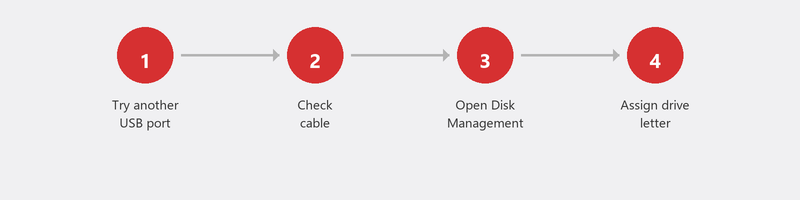
This is the most common cause and also the easiest to test. USB ports can become faulty, and cables wear out. Try all USB ports (including the ones on the back of a desktop). Also try a different cable if you have one. Test the drive on a different computer. Does it work there? Then the problem is with your computer.
Step 2: Check Disk Management in Windows

Sometimes Windows recognizes the drive but doesn't assign a drive letter. Right-click the Start button, then Disk Management. Look for your external drive in the list. Do you see it without a drive letter? Right-click, Change Drive Letter and Paths, Add, and assign a letter.
Is the drive showing as "Not Initialized" or "Unallocated"? Be careful: initializing or formatting erases all data. If there's important data on it, don't do this yourself -- consult a specialist.
Step 3: Check Device Manager
Open Device Manager (right-click the Start button, Device Manager) and look under Disk drives. Is your external drive listed there, possibly with a yellow warning triangle? Right-click, Update driver. Doesn't that help? Choose Uninstall device, disconnect the drive, wait ten seconds, and reconnect it.
Step 4: The drive is making ticking or clicking sounds
Stop using it immediately. Ticking or clicking sounds indicate physical damage to the read arm or platters. Every additional second the drive spins can worsen the damage and make data permanently unrecoverable. Disconnect the drive and don't use it again until a professional has examined it.
Step 5: Recover data from a non-working drive
If the drive is still partially recognized but the files aren't accessible, you can try data recovery software: Recuva, R-Studio, or Disk Drill can sometimes retrieve files from a damaged drive.
With physical damage (ticking sounds, not recognized anywhere), software isn't enough. Professional data recovery in a cleanroom typically costs 500-1,500 euros, depending on the severity and size of the drive.
How to prevent this in the future
- Always safely eject the drive before unplugging the cable (right-click the USB icon in the taskbar, Eject).
- Don't drop an external drive and store it in a safe, stable place.
- Never rely on just one copy. An external drive is a backup, but only if you also have a second backup (for example in the cloud). The 3-2-1 rule applies here too.
Need help? We'll assess the situation remotely
Call us and a specialist will check via Disk Management and Device Manager whether your drive is still recognized, what its status is, and whether your data is likely recoverable. Based on that, we'll advise the best next step.
External drive not working and there are important files on it? Call +31 10 268 7172 -- we'll assess right away whether your data can be saved [link to /remote-help]
Frequently asked questions
Can I still recover data from a drive that's no longer recognized?
That depends on the cause. With a software problem or faulty USB port, the chances are good. With physical damage, professional recovery is needed, with a success rate of 60-90% depending on the severity.
Why is my external drive suddenly no longer recognized?
Most common causes: bad USB cable or port, outdated driver, insufficient power (with drives without their own power supply), or a corrupted partition table. In the latter case, the data is often still there.
Is an external SSD more reliable than an external HDD?
Yes. An SSD has no moving parts and is more resistant to shocks, drops, and wear. Faster, quieter, and more durable. The price per gigabyte is higher, but the reliability more than makes up for it.
Do I always need to "safely eject" my external drive?
Yes, always. Windows can still be performing write operations in the background, even when you're not doing anything. Unplugging without ejecting increases the risk of data corruption.
How much does professional data recovery from an external drive cost?
For software-based recovery done remotely, you pay Tech-Amigo's standard session rate. For cleanroom recovery: 500-1,500 euros depending on the type of damage and the size of the drive. Most companies offer a free diagnosis before you commit.
Need help? We connect remotely.
A specialist looks at your computer remotely. The assessment is free.