Congratulations on your new computer. Unboxing is the fun part. What comes after is a bit less fun: setting up, transferring, and configuring everything so your new machine feels like your old one, b...
Congratulations on your new computer. Unboxing is the fun part. What comes after is a bit less fun: setting up, transferring, and configuring everything so your new machine feels like your old one, but faster. This checklist walks you through it step by step, so you don't forget anything and can be done in one evening.
Step 1: Set up and update Windows
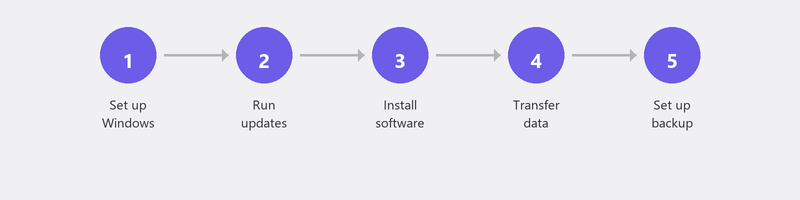
On first boot, Windows asks you to choose a language, connect to WiFi, and sign in with a Microsoft account. Take your time with this. Choose a strong password and set up a PIN for daily login. Once you're on the desktop, go to Settings, Windows Update, Check for updates. Install everything.
Step 2: Transfer your files
The easiest way is via the cloud. If you used OneDrive or Google Drive on your old computer, just log in on the new one and your files sync automatically. No cloud? Copy your files to a USB stick or external hard drive.
Don't forget: the Documents, Desktop, Pictures, and Downloads folders. Also check that your browser bookmarks are synced (Chrome and Edge do this automatically when you're signed in).
Step 3: Install your favorite programs
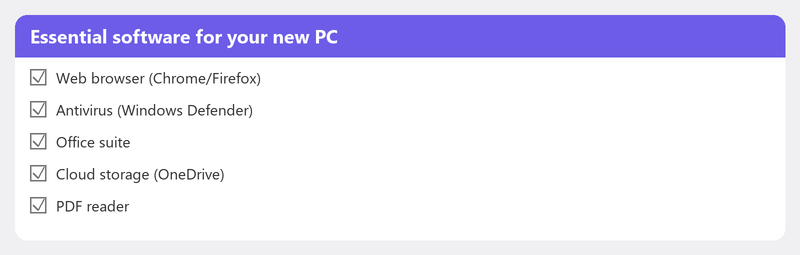
A new computer only has the basic programs. Think of: a browser (Chrome, Firefox, or Edge), Microsoft Office or a free alternative, antivirus software (Windows Defender is already active by default), Zoom or Teams if you video call, and any programs for your hobby or work.
Note about Office: you need a license. If you had Microsoft 365 on your old computer, you can log in at office.com and download it again. A one-time Office 2021 license is not transferable to a new computer.
Step 4: Set up email
Do you use webmail (Gmail, Outlook.com)? Then you just need to log in via your browser. Do you use a desktop program like Outlook? Then you need to set up your email account again. Read our article on setting up email for the steps.
Step 5: Connect your printer and peripherals
Connect your printer, scanner, external drive, and other devices. Windows recognizes most devices automatically. Not working? Read our article on installing a printer.
Step 6: Set up a backup
Right now. Not tomorrow, not next week. Set up OneDrive sync for your Documents and Pictures, or connect an external drive and activate File History. Ten minutes of work, and you're protected from day one.
Want us to do it? We set up your computer remotely
Don't have the time or desire to do all these steps yourself? Call us and a specialist will set up your new computer completely via remote access: transfer files, install programs, set up email, connect your printer, and configure a backup.
Bought a new computer? Call +31 10 268 7172 and we'll set it up completely remotely [link to /remote-help]
Frequently asked questions
How long does it take to set up a new computer?
Expect two to four hours if you do it yourself, including downloading updates and programs. Have Tech-Amigo do it? It's usually done within an hour and a half.
Can I transfer my old programs to my new computer for free?
That depends on the program. Free software (Chrome, VLC, Zoom) can simply be downloaded again. For paid software (Office, Adobe), you need your license. Some licenses are transferable, others are not.
Should I wipe my old computer before getting rid of it?
Absolutely. Your old computer contains your personal files, login credentials, and browsing history. Go to Settings, System, Recovery, and choose Reset this PC with the option Remove everything.
Do I need a new Microsoft account for my new computer?
No. You can use your existing Microsoft account. In fact, it's recommended because your settings, OneDrive files, and app purchases automatically sync to your new computer.
What if my new computer feels slower than expected?
First install all Windows updates and restart. New computers can feel slow because they're running many updates and indexing tasks in the background. After a day or two, that's over. Still slow? Read our article on slow computer.
Need help? We connect remotely.
A specialist looks at your computer remotely. The assessment is free.