
Your daughter wants to talk to you via Zoom. Your doctor offers consultations via Teams. Your former colleagues want a reunion via video call. Video calling is here to stay, but the barrier to using...
Your daughter wants to talk to you via Zoom. Your doctor offers consultations via Teams. Your former colleagues want a reunion via video call. Video calling is here to stay, but the barrier to using it for the first time can be high. How do you install it? How do you start a call? And what if your camera or microphone doesn't work?
Installing Zoom on your computer
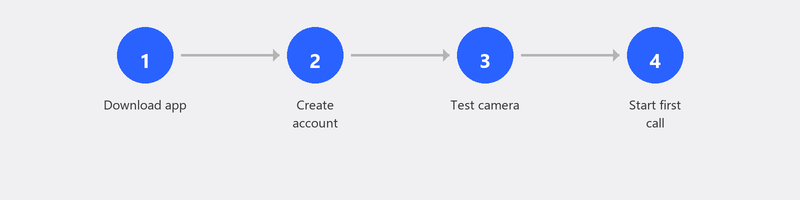
Go to zoom.us/download and click Download under "Zoom Workplace." Open the file and follow the installation instructions (takes one to two minutes).
You can immediately join a meeting via a link you receive by email, WhatsApp, or text -- without an account. Want to start your own meetings? Create a free account with your email address.
Installing Microsoft Teams on your computer

Go to microsoft.com/teams and click Download Teams. Sign in with your Microsoft account (the same as for Outlook or OneDrive). Have Microsoft 365? Then Teams is probably already installed.
Teams has a free version that works perfectly for personal use. For a call with family or a small meeting, free is more than enough.
Starting or joining your first video call
- Join via a link: Receive a link by email or WhatsApp, click on it, and you're in the call. Choose the app if you've installed it.
- Start a call yourself: Open Zoom or Teams, click New meeting or Start meeting, and share the link with participants.
- Test camera and microphone: Click the gear icon (settings), go to Audio and Video, speak a test sentence, and check if you can see yourself on screen.
Camera or microphone not working? Try this
The most common issue: Windows is blocking the app's access to your camera or microphone. Go to Settings, Privacy & security, Camera (or Microphone). Check that the toggle is set to On and that Zoom or Teams is in the list of allowed apps.
Still not working? Check in Zoom or Teams whether the correct device is selected. Have an external webcam or headset? Choose the right device in the audio settings. Last resort: update the webcam driver via Device Manager.
Sound or video stuttering during the call
Stuttering is almost always caused by a slow internet connection or an overloaded computer. Close other programs and browser tabs. Sit closer to the router or use a network cable. Turn off HD video quality in settings to save bandwidth.
Zoom vs. Teams: what's the difference?
For most home users, it doesn't matter much. Zoom is slightly simpler for beginners: the interface is clean and joining via a link works flawlessly. Teams is better integrated with Microsoft products (Outlook, OneDrive, Office) and is the standard in many businesses. Calling family? Zoom. Business? Teams.
Need help with video calling? We'll set it up for you
We install Zoom or Teams on your computer, test your camera and microphone, and make sure you're ready for your first call. Call us and we'll set it up together remotely.
Need to set up video calling? Call +31 10 268 7172 and we'll arrange it together remotely [link to /remote-help]
Frequently asked questions
Do I need an account to join a Zoom call?
No. To join via a link, you don't need an account. Only if you want to start your own meetings do you need to create a (free) account.
Is Zoom free?
Yes, the basic version is free. It offers meetings up to 40 minutes with up to 100 participants. After 40 minutes, you can simply reconnect.
Why can't other people see me?
Usually because your camera is turned off in the app (click the camera icon) or because Windows is blocking camera access (Settings, Privacy, Camera). Also check if there's a physical slider over your webcam.
Can I video call without a camera?
Yes. You can join with audio only. You'll see the others, but they won't see you. For personal conversations, having video is nicer though.
How do I invite someone?
Start a meeting and click Invite or Copy meeting link. Send the link via email, WhatsApp, or text. The recipient clicks on it and joins the call, even without an account.
Need help? We connect remotely.
A specialist looks at your computer remotely. The assessment is free.