
Windows wants to be updated regularly, and in most cases it happens automatically. Until one time it doesn't work. The update gets stuck at a certain percentage, you get an error code that means not...
Windows wants to be updated regularly, and in most cases it happens automatically. Until one time it doesn't work. The update gets stuck at a certain percentage, you get an error code that means nothing to you, or your computer keeps restarting without the update ever completing. It's frustrating, but almost always fixable.
Why does a Windows update fail?
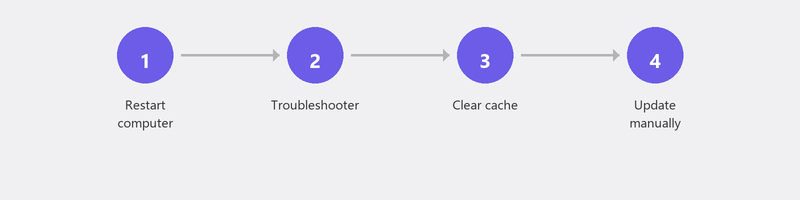
The most common causes are surprisingly mundane: not enough free disk space, an unstable internet connection during download, conflicting software that blocks the installation, or corrupted update files from a previous failed attempt. Sometimes antivirus software also plays a role by flagging the update as suspicious.
Step 1: Restart your computer and try again

A restart clears temporary files and ends processes that may be blocking the update. After restarting, go to Settings, Windows Update, and click Check for updates. Let the update run again.
Step 2: Check your disk space
Windows needs at least 10 GB of free space to install an update, and for major feature updates sometimes even more. Go to Settings, System, Storage to see how much space you have. Not enough? Delete files you no longer need, empty the recycle bin, or run Disk Cleanup.
Step 3: Run the Windows Update troubleshooter
Windows has a built-in tool that automatically detects and repairs common update problems. Go to Settings, System, Troubleshoot, Other troubleshooters, and click Run next to Windows Update. The tool checks your system and tries to fix problems automatically.
Step 4: Clear the Windows Update cache
Sometimes the downloaded update files become corrupted. Clearing the cache forces Windows to download them again. Open the search bar and type cmd. Right-click on Command Prompt and choose Run as administrator. Type the following commands:
- net stop wuauserv (Enter)
- net stop bits (Enter)
Then open File Explorer and go to C:\Windows\SoftwareDistribution. Delete the contents of this folder. Go back to the Command Prompt and type net start wuauserv and net start bits. Try the update again now.
Step 5: Install updates manually
If the automatic update keeps failing, you can download the update manually. Note the error code you're getting (for example KB5034441) and search for it on the Microsoft Update Catalog website. Download the correct package for your Windows version and install it manually.
When is a reinstallation necessary?
In rare cases, the system files are so corrupted that updates no longer work. An in-place upgrade (reinstalling Windows without losing files) is then an option. This takes about an hour and fixes virtually all update problems. Your files and programs are preserved, but it's wise to make a backup first.
Update not working? We'll fix it remotely
Update problems are ideally suited for remote help. A specialist can check your error logs, manually install the correct update, and make sure future updates run smoothly again.
Update stuck? Call +31 10 268 7172 and we'll fix it remotely [link to /remote-help]
Frequently asked questions
Can I delay Windows updates?
Yes, you can pause updates for up to seven days via Settings, Windows Update, Pause updates. Delaying longer isn't recommended, as updates often patch security vulnerabilities. After the pause, Windows installs all postponed updates anyway.
What does an error code in Windows Update mean?
Each error code refers to a specific problem. For example, code 0x80070070 means insufficient disk space, while 0x80073712 indicates corrupted system files. Looking up the code on the Microsoft support site helps you find targeted solutions.
Will I lose my files if I reinstall Windows?
With an in-place upgrade (reinstalling while keeping files), your documents, photos, and most programs are preserved. Only with a clean installation is everything erased. Make a backup regardless.
How long does a Windows update normally take?
A regular monthly update takes five to fifteen minutes. A major semi-annual feature update can take thirty minutes to an hour. If your update is stuck on the same percentage for more than two hours, something has probably gone wrong.
Should I upgrade to Windows 11?
Windows 10 support ended in October 2025. After that, you no longer receive security updates. If your computer supports Windows 11, upgrading is wise. Not sure if your computer is compatible? Call us for advice.
Need help? We connect remotely.
A specialist looks at your computer remotely. The assessment is free.