Connecting a new printer should be as simple as plug and print. In practice, it unfortunately rarely goes that smoothly. Your printer can't find your WiFi, Windows doesn't recognize the device, or...
Connecting a new printer should be as simple as plug and print. In practice, it unfortunately rarely goes that smoothly. Your printer can't find your WiFi, Windows doesn't recognize the device, or you get an error message no one understands. This guide walks you through it step by step, whether you have a wired or wireless printer.
Before you start: what do you need?
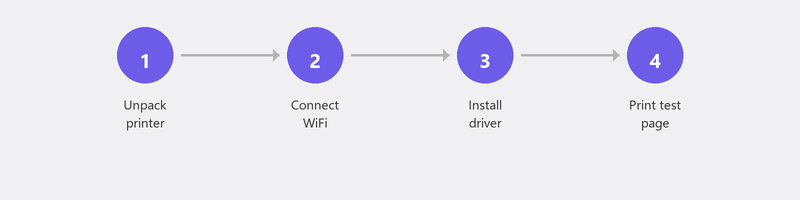
Make sure you have the following ready: your printer (unpacked, power cable connected, ink or toner installed), your WiFi password (usually on a sticker on your router), and a computer or phone you want to print from. Don't throw away the quick start guide for your printer: it might come in handy.
Installing a printer via WiFi (wireless)

Most modern printers have a screen or a set of buttons to access the WiFi settings. Look in the printer's menu for Network, Wireless, or WiFi Setup. Select your WiFi network from the list and enter the password. Once the printer is connected, a WiFi icon usually appears on the printer's screen.
Does your printer have no screen? Then you can often connect via the manufacturer's app (HP Smart, Epson Smart Panel, Canon PRINT). Download the app on your phone, follow the steps, and the app will guide you through the connection process.
Installing a printer via USB cable
Connect the USB cable between your printer and your computer. In most cases, Windows automatically recognizes the printer and installs the necessary software. Doesn't that happen? Go to Settings, Bluetooth & devices, Printers & scanners, and click Add device. Windows will now search for available printers.
Windows can't find your printer? Then you may need to manually download a driver from the manufacturer's website. Go to the support page for your printer brand and search for your model number. Microsoft explains how to add a printer in Windows here.
Connecting a printer to your computer (Windows 10/11)
Go to Settings, Bluetooth & devices, Printers & scanners. Click Add device. Windows searches for printers available on your network. Do you see your printer in the list? Click on it and follow the instructions. Within a minute, you should be able to print a test page.
Printer doesn't work after installation? Try this
Turn off both the printer and your computer, then turn them back on. Check that the printer is on the same WiFi network as your computer (note: some routers have a 2.4 GHz and a 5 GHz network with different names). Remove the printer from Windows (Settings, Printers & scanners, click the printer, Remove) and add it again.
Still doesn't work? Run the Windows troubleshooter: go to Settings, System, Troubleshoot, Other troubleshooters, and click Run next to Printer. Also read our article on WiFi problems if you suspect the connection is the issue.
Need help? We install your printer remotely
Printer installation is one of our most requested services, and for good reason: it's annoying work when it doesn't go right the first time. Call us and a specialist will create a secure connection to your computer. We install your printer, test the connection, and make sure everything works.
Frequently asked questions
Can I print without WiFi?
Yes, you can always print via a USB cable without WiFi. Some printers also support WiFi Direct, which lets you connect directly between your device and printer without needing a router.
Why can't my computer find the printer?
Usually because the printer and computer aren't on the same WiFi network, the printer hasn't been turned on, or the driver is missing. Check all three and try adding the printer again via Settings.
How do I install a printer on my phone?
Download the app from your printer manufacturer (HP Smart, Epson Smart Panel, Canon PRINT) and follow the steps. On iPhones, you can also use AirPrint: if your printer and phone are on the same network, the printer appears automatically as an option when printing.
What's the difference between a WiFi printer and a regular printer?
A WiFi printer connects wirelessly to your network, so you can print from any device in your home. A regular printer only works via a USB cable connected directly to your computer.
Do I need to install a driver for my printer?
Windows recognizes many printers automatically and installs a basic driver on its own. But for all features (scanning, double-sided printing), you sometimes need the full driver from the manufacturer. You can find it on the brand's support page.
Can't get your printer working? Call +31 10 268 7172 and we'll install it remotely [link to /remote-help]
Need help? We connect remotely.
A specialist looks at your computer remotely. The assessment is free.