
You're working on your computer and suddenly the entire screen turns blue. A sad face appears, along with an error code and a message that your computer needs to restart. Yo...
You're working on your computer and suddenly the entire screen turns blue. A sad face appears, along with an error code and a message that your computer needs to restart. Your heart skips a beat. Is your computer broken? Are your files gone? In most cases, the answer is: no. A blue screen is annoying, but rarely the end of your computer.
What exactly is a blue screen?
A blue screen (officially: Blue Screen of Death, or BSOD) is Windows' way of saying: something went so wrong that I need to stop myself to prevent further damage. So it's actually a protection mechanism. Windows collects information about what went wrong (the error code on screen) and restarts itself.
The most common causes

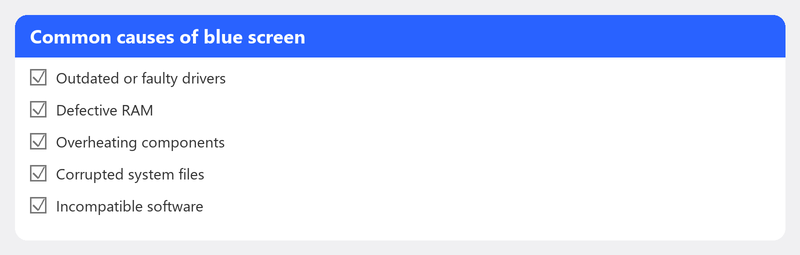
A blue screen can have various causes. The most common are driver issues (a driver that doesn't work well with Windows), a recent Windows update that disrupted something, faulty memory (RAM), overheating of the processor, or in rare cases malware. The problem often occurs shortly after an update or installing new hardware or software.
Step 1: Restart your computer
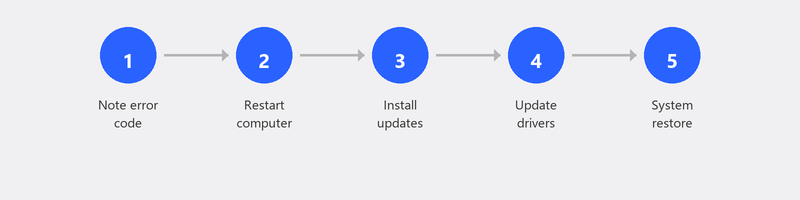
In many cases, a blue screen is a one-time incident. Windows repairs itself during the restart and the problem doesn't return. If your computer works normally after the restart and the blue screen doesn't come back, it was probably a temporary issue. Keep an eye on it though: if it doesn't return within a week, there's nothing to worry about.
Step 2: Install the latest Windows updates
Microsoft regularly releases updates that fix known issues, including causes of blue screens. Go to Settings, Windows Update, Check for updates. Install everything available and restart your computer. Microsoft has a specific page about fixing blue screens.
Step 3: Check recently installed software or drivers
Did you recently install a new program, update a driver, or connect new hardware? That could be the trigger. Try to undo the recent change. You can roll back a driver through Device Manager (right-click the device, Properties, Driver tab, Roll Back Driver). You can also use a System Restore Point to return your computer to a time when everything still worked.
Step 4: Run the Windows Memory Diagnostic
Faulty memory is a common cause of recurring blue screens. Windows has a built-in tool to test your RAM. Press the Windows key, type mdsched, and press Enter. Choose Restart now and check for problems. The computer restarts and runs a memory test. This takes five to twenty minutes. Afterwards, Windows boots up again and shows the results. Microsoft explains the Memory Diagnostic here.
Step 5: Look up the error code
The blue screen always shows a stop code, such as IRQL_NOT_LESS_OR_EQUAL, KERNEL_DATA_INPAGE_ERROR, or CRITICAL_PROCESS_DIED. Write down this code (take a photo with your phone if needed). You can look up the code on the Microsoft support website to learn more about the specific cause. This also helps if you contact a specialist.
Blue screen keeps coming back? We help remotely
A one-time blue screen is rarely cause for concern. But if it keeps recurring, there's a deeper problem that requires diagnosis. Call us and a specialist will look at the error logs on your computer, identify the cause, and fix the problem. You can watch on your screen while we work.
Also read our article on slow computer if your computer also has performance issues alongside blue screens, or our article on Windows update failed if the blue screen started after an update.
Frequently asked questions
Is a blue screen a sign that my computer is broken?
Almost never. A blue screen is Windows' way of flagging a serious software or driver issue. In most cases (about 90 percent), it's a software problem that can be fixed. Only when combined with strange sounds or a burning smell could it be hardware.
Can I lose data from a blue screen?
The work you were doing at that moment (an unsaved document, for example) can be lost. But your saved files on the hard drive are not affected by a blue screen. Save your work regularly to minimize loss.
What does the error code on the blue screen mean?
The error code (stop code) indicates which part of Windows caused the problem. Each code refers to a specific type of error. Looking up the code helps you determine the cause. The most common ones point to driver or memory-related issues.
How often should a blue screen occur?
Once a year or less is generally no cause for concern. Computers are complex and sometimes things go wrong. If you get them multiple times per month or per week, there's a structural problem that needs investigation.
Can a virus cause a blue screen?
Yes, but it's not the most common cause. Some malware can damage system files, which can lead to blue screens. If you're experiencing other strange symptoms alongside blue screens (pop-ups, unfamiliar programs), run a full virus scan.
Blue screen that keeps coming back? Call +31 10 268 7172 and a specialist will investigate [link to /remote-help]
Need help? We connect remotely.
A specialist looks at your computer remotely. The assessment is free.