
You open a program that worked perfectly yesterday, and it crashes. Or it opens but freezes immediately. Or you get an error message that means nothing to you. Software that won't cooperate is a da...
You open a program that worked perfectly yesterday, and it crashes. Or it opens but freezes immediately. Or you get an error message that means nothing to you. Software that won't cooperate is a daily frustration, but the solution is almost always simpler than the error message suggests.
This article gives you six steps that apply to virtually any program. For specific problems with Outlook, read our article on Outlook problems. For Office issues: Office installation and troubleshooting.
Step 1: Close the program via Task Manager
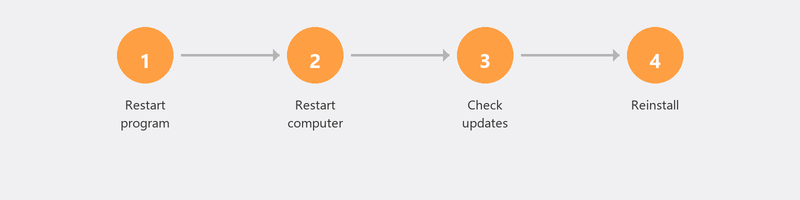
If a program is frozen and not responding to clicks, you can force it to close. Press Ctrl + Shift + Esc to open Task Manager. Find the program in the list, click on it, and click End task. Wait ten seconds and open the program again.
Step 2: Restart your computer

The timeless classic, and for good reason. A restart clears the working memory, ends stuck processes, and gives Windows a clean start. Many software problems disappear after a restart. It takes two minutes and saves you a lot of frustration.
Step 3: Check for updates
Outdated software can cause conflicts, especially after a Windows update. Check if there's a new version of the program available (usually via Help, Check for updates, or on the developer's website). Also update Windows itself: Settings, Windows Update, Check for updates.
Step 4: Repair or reinstall the program
Windows has a built-in repair function for many programs. Go to Settings, Apps, Installed apps. Find the program, click the three dots, and choose Modify or Repair (if available). Doesn't that help? Remove the program completely (choose Uninstall) and reinstall it from the official website or via the Microsoft Store.
Step 5: Try compatibility mode
Using an older program on Windows 10 or 11? A compatibility issue could be the cause. Right-click on the program icon, choose Properties, Compatibility tab. Check "Run this program in compatibility mode for" and select an older Windows version (try Windows 8 or 7). Click OK and start the program.
Step 6: Check for malware
Sometimes malware causes software crashes by damaging system files or using too many system resources. Run a full virus scan if other steps don't work. Read our article on removing viruses for the full procedure. Also read our article on slow computer if the program doesn't crash but is extremely slow.
Can't get the program working? We help remotely
Software problems are ideal to solve remotely. A specialist checks the error message, reviews log files, and repairs or reinstalls the program. Call us and it'll be working again within the hour.
Program that won't cooperate? Call +31 10 268 7172 and we'll fix it remotely
Frequently asked questions
Why does a program suddenly crash when it always worked?
The most common causes: a Windows update causing a conflict, an update to the program itself that contains a bug, insufficient disk space, or a corrupted program file. The steps in this article help you identify the cause.
Will I lose my data if I reinstall a program?
That depends on the program. Most programs store your data separately from the program files (in your Documents folder or in the cloud). During reinstallation, that data is preserved. But always make a backup first just to be safe.
How do I find the right version of a program for my computer?
Check whether you're running Windows 10 or 11 (Settings, System, About) and whether you have a 32-bit or 64-bit system (shown on the same page). Then download the corresponding version from the developer's website. Most computers these days run 64-bit.
What does "this program is not responding" mean?
The program is frozen: it's no longer executing instructions and not responding to clicks. This can be caused by an error in the program, insufficient memory, or a conflict with other software. Close it via Task Manager and reopen it.
Can I run old programs on Windows 11?
Many older programs still work on Windows 11. If it doesn't work, try compatibility mode (step 5). Very old software (designed for Windows XP or earlier) may be permanently incompatible. In that case, an alternative program is the best option.
Need help? We connect remotely.
A specialist looks at your computer remotely. The assessment is free.