You want to look something up, send an email, or stream a movie, but your internet isn't working. Or it loads so slowly it might as well not be working at all. WiFi problems are incredibly frustra...
You want to look something up, send an email, or stream a movie, but your internet isn't working. Or it loads so slowly it might as well not be working at all. WiFi problems are incredibly frustrating, precisely because we've become so dependent on it. Fortunately, most problems are easy to fix if you follow the right steps.
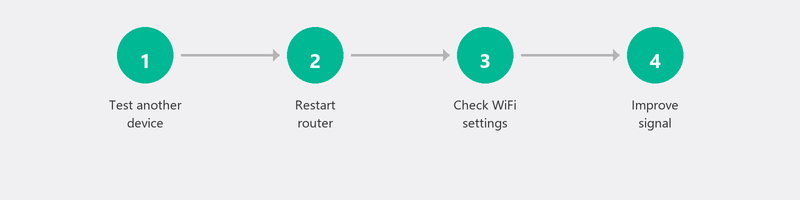
Step 1: Check if the problem is with your device
Grab your phone or another device and check if it connects to the WiFi network. Does the internet work fine on your phone but not on your laptop? Then the problem is with your computer, not your WiFi. In that case, you can skip ahead to step 3. Does it not work on any device? Then it's probably a router or provider issue.
Step 2: Restart your router and modem

It sounds too simple to be true, but restarting your router fixes an estimated half of all WiFi problems. Unplug it from the power outlet, wait thirty seconds, and plug it back in. Give the router two minutes to fully start up before you test the connection. Do you have a separate modem (the box from your provider)? Restart that too.
Step 3: Check the WiFi settings on your computer
Sometimes WiFi turns itself off, for example after an update or if you accidentally turned on airplane mode. Click on the WiFi icon in the bottom right of your taskbar and check: is WiFi turned on? Is airplane mode off? Do you see your network in the list? Try "forgetting" the network (right-click, Forget) and reconnect by entering your WiFi password.
Step 4: WiFi keeps dropping?
If your WiFi works but regularly drops out, the cause could be physical. Are you too far from the router? Are there thick walls or a floor between you and the router? Devices like microwaves and baby monitors can interfere with the WiFi signal. Try sitting closer to the router to test if the signal is stable. Is your house large or do you have many walls? Then a WiFi extender or mesh system could help.
Another common cause is an outdated network driver. Open Device Manager (search for it via the search bar), expand Network adapters, right-click on your WiFi adapter and choose Update driver.
Step 5: Internet is slow via WiFi
Does your internet work but is it slow? Run a speed test at speedtest.net. Compare the result with the speed your provider promises. Also try with an ethernet cable: if you get the promised speed wired but not over WiFi, then it's a WiFi problem, not an internet problem. In that case, it can help to change the WiFi channel on your router. You can do this through your router settings (usually accessible via 192.168.1.1 in your browser).
Step 6: When should you call your provider?
If the internet doesn't work on any device (including wired), if your speed is consistently lower than promised, or if the modem shows lights that normally don't come on, there may be an outage or a problem on your provider's end. First check if there's an outage in your area via your provider's website or app. No outage? Then call their customer service. The government provides information about your rights regarding telecom complaints here.
Need help setting up or optimizing your WiFi? We help remotely
Can't figure it out after all these steps? We can remotely check your network settings, optimize your WiFi channel, and update your driver. Call us and a specialist will help you right away, see remote help.
Frequently asked questions
Why does my WiFi work on my phone but not on my laptop?
This points to a problem with your laptop, not your WiFi. Usually it's an outdated network driver, a wrong setting, or a WiFi adapter that's been disabled. Restart your laptop, check if WiFi is turned on, and update your driver through Device Manager.
How often should I restart my router?
There's no fixed rule, but if you notice your internet getting slower or the connection becoming unstable, a monthly restart helps. Some routers benefit from a weekly restart. It takes thirty seconds and can prevent a lot of frustration.
Does a WiFi extender help with a weak signal?
In many cases, yes. A WiFi extender (also called a repeater) picks up the signal from your router and rebroadcasts it. A mesh system is a better but more expensive solution that covers your entire home evenly. For most homes, a good router placement plus possibly an extender is sufficient.
Can I find my WiFi password if I've lost it?
Yes. On a Windows computer that's already connected, you can find the password via Settings, Network & Internet, WiFi, your network name, Wireless network properties, Security, Show characters. It's also on a sticker on your router.
How do I know if there's an internet outage in my area?
Check your provider's website or app. Most providers have an outage page where you can enter your postal code. You can also check websites like downdetector.com for an overview.
WiFi problems you can't solve? Call +31 10 268 7172 and we'll look into it right away [link to /remote-help]
Need help? We connect remotely.
A specialist looks at your computer remotely. The assessment is free.