
A smartphone or tablet can make your life more enjoyable. Staying in touch with children and grandchildren via video calls, sharing photos in a family app, or simply reading the news on a bigger scr...
A smartphone or tablet can make your life more enjoyable. Staying in touch with children and grandchildren via video calls, sharing photos in a family app, or simply reading the news on a bigger screen. But setting up and using such a device isn't always straightforward. That's okay. We're happy to help you, calmly and at your own pace.
Installing and using WhatsApp
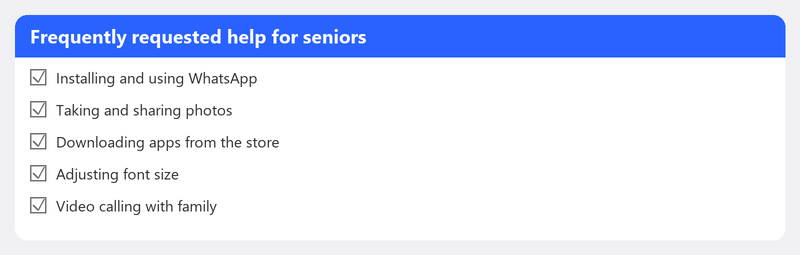
WhatsApp is the most widely used messaging app in the Netherlands. To install it, open the App Store (iPhone) or Play Store (Android) on your phone. Search for "WhatsApp" and tap Install. After installing, open the app, enter your phone number, and confirm with the code you receive by text.
Tip: ask a family member to help you with the initial setup. Or call us: we'll guide you through every step over the phone.
Video calling with family

Video calling is possible through WhatsApp (tap the camera icon next to a contact), FaceTime (iPhones and iPads only), or Zoom or Skype. All you need is a working internet connection (WiFi) and a device with a camera.
Video call not working properly? Check if WiFi is turned on, if camera permission is enabled (Settings, Privacy, Camera), and if you have enough light so the other person can see you well.
Installing and removing apps
You download apps from the App Store (iPhone/iPad) or Play Store (Android). Search for the name of the app, tap Install, and wait until it's done. The app appears on your home screen. Want to remove an app? Hold your finger on the app icon until a menu appears and choose Uninstall.
Is an app safe? Apps in the official App Store and Play Store are vetted. Never download apps from websites or through links in messages.
Phone or tablet has become slow
A slow device is often the result of too little storage space or too many apps running in the background. You can free up storage by transferring photos to your computer and by removing apps you no longer use. Restarting your device also helps.
Transferring and storing photos
Your photos are memories and you don't want to lose them. You can transfer them to your computer via a USB cable, or automatically save them in the cloud via Google Photos (Android) or iCloud (iPhone). This way you always have a copy, even if your phone breaks.
We help you over the phone with your smartphone or tablet
Help with a smartphone or tablet is easiest over the phone. You call us, and we guide you step by step. You don't need to connect to your computer: we simply talk you through it. Patiently, in plain language, and without rushing.
Need help with your smartphone or tablet? Call +31 10 268 7172 -- we'll explain everything calmly [link to /remote-help]
Frequently asked questions
Can you also help with an iPhone or iPad?
Yes. Our specialists help with both Android devices (Samsung, Huawei, etc.) and Apple devices (iPhone, iPad). The steps sometimes differ, but the principle is the same.
How do I make the text bigger on my phone?
Go to Settings, Display (or Screen) and look for Font size or Text size. Slide the bar to the right to make the text bigger. On iPhones, you'll find this under Settings, Display & Brightness, Text Size.
Is it safe to install apps?
Apps from the official App Store (iPhone) and Play Store (Android) are generally safe. Never install apps through links in messages or emails, and only give apps the permissions they actually need.
Can I video call without WiFi?
Yes, but then you'll use your mobile data. Video calling uses relatively a lot of data: a half-hour call costs about 500 MB. If you have a limited data plan, WiFi is recommended.
How do I stop my phone from constantly making sounds?
Go to Settings, Notifications. Here you can set per app whether you want to receive notifications and whether they can make sound. You can also enable Do Not Disturb mode to temporarily silence all sounds.
Need help? We connect remotely.
A specialist looks at your computer remotely. The assessment is free.