Yesterday it printed just fine, today it does nothing. You click Print, it seems like something is happening, but the printer doesn't make a sound. Or it shows as "offline" even though it's turne...
Yesterday it printed just fine, today it does nothing. You click Print, it seems like something is happening, but the printer doesn't make a sound. Or it shows as "offline" even though it's turned on. Or it pulls the paper in but a blank page comes out. Printer problems are notorious, but the solution is almost always simpler than you'd think.
This article is about printers that were working and now aren't. Do you have a new printer you want to install for the first time? Then read our article on installing a printer.
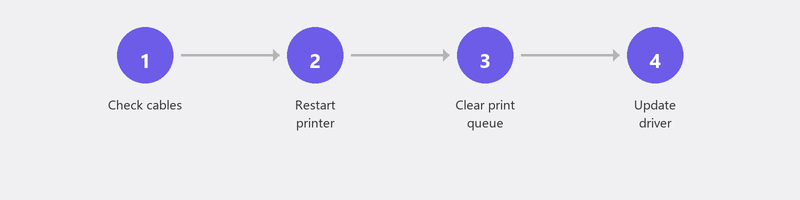
Step 1: Check the basics
Is the printer turned on? Is there paper in it? Is the ink or toner not empty? Is the USB cable properly connected, or is the WiFi connection active? These are the things you'd rather not hear, but they're surprisingly often the cause. Also check if there's an error message on the printer's screen: it often tells you exactly what's wrong (paper jam, empty ink, cover open).
Step 2: Printer shows as "offline" in Windows

This is the most common printer problem. Your printer appears as "Offline" in Windows, even though it's on and connected. Go to Settings, Bluetooth & devices, Printers & scanners. Click on your printer. Does it say "Offline"? Click Open print queue and check if "Use Printer Offline" is checked (in the Printer menu). If it is, uncheck it.
Also check if your printer is set as the default printer. Sometimes Windows sends print jobs to a different (virtual) printer, like "Microsoft Print to PDF."
Step 3: Clear the print queue
If a previous print job got stuck, it blocks everything that comes after it. Go to Settings, Bluetooth & devices, Printers & scanners, click on your printer, and choose Open print queue. Do you see jobs in the list? Right-click and choose Cancel. Repeat for all jobs. Then restart both your printer and computer.
Step 4: Remove and re-add the printer
Sometimes the connection between Windows and your printer gets confused. The quickest fix: remove the printer from Windows and add it again. Go to Settings, Printers & scanners, click on your printer, and choose Remove. Then click Add device. Windows searches for available printers and (hopefully) finds yours again.
Step 5: Update or reinstall the printer driver
The driver is the software that lets your computer and printer communicate. Sometimes a driver becomes outdated or corrupted, especially after a Windows update. Go to the website of your printer manufacturer (HP Support, Epson, Canon, or Brother), search for your printer model, and download the latest driver. Install it and restart your computer.
Step 6: Run the Windows troubleshooter
Windows has a built-in troubleshooter for printers. Go to Settings, System, Troubleshoot, Other troubleshooters, and click Run next to Printer. The tool automatically checks the most common problems and tries to fix them.
Also read our article on WiFi problems if you suspect the wireless connection is the issue.
Printer still not working? We help remotely
Printer problems are perfectly suited for remote help. A specialist can check your printer settings, install the correct driver, clear the queue, and restore the connection. Call us and you'll be printing again within the hour.
Printer not working? Call +31 10 268 7172 and we'll fix it remotely
Frequently asked questions
Why does my printer show as "offline" when it's on?
This happens when Windows loses communication with the printer. Causes: an unstable WiFi connection, a sleeping printer that doesn't wake up in time, or a conflict after a Windows update. Removing and re-adding the printer usually fixes it.
How long does a printer typically last?
Most inkjet printers last three to five years with normal home use. Laser printers last longer: five to ten years. Printing regularly (at least once a week) prevents print heads from drying out.
Can I print from my phone if the computer isn't working?
Yes. Most modern printers support mobile printing. Use the manufacturer's app (HP Smart, Epson Smart Panel, Canon PRINT) or AirPrint (iPhone). Your phone and printer need to be on the same WiFi network.
Does turning the printer off and on again help?
Yes, surprisingly often. Restarting the printer resets the internal software and resolves stuck jobs. Turn the printer off, wait ten seconds, and turn it back on. Restart your computer too for the best result.
Where do I find the right driver for my printer?
On the manufacturer's support website. Search for your printer's model number (on a sticker on the printer itself). Download the driver that matches your Windows version (Windows 10 or 11, 64-bit). Install it and restart your computer.
Need help? We connect remotely.
A specialist looks at your computer remotely. The assessment is free.