
Your phone is full of photos: vacations, birthdays, snapshots of the grandchildren. These are memories you don't want to lose. But on your phone they're vulnerable: a drop, a theft, or a defect an...
Your phone is full of photos: vacations, birthdays, snapshots of the grandchildren. These are memories you don't want to lose. But on your phone they're vulnerable: a drop, a theft, or a defect and everything is gone. By transferring your photos to your computer (and making a backup), you can be sure they're safe. Here are the easiest methods.
Photos from your Android phone to your PC
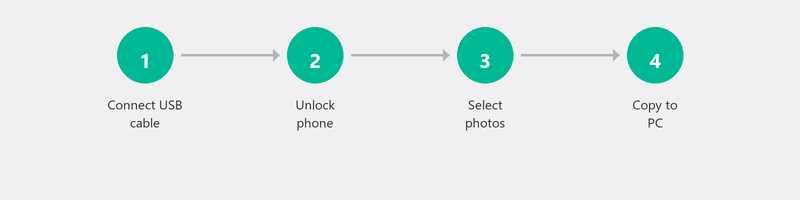
Connect your phone to your computer with a USB cable. Your phone may ask for permission: choose File transfer (or MTP). Open File Explorer on your computer and you'll see your phone as a device. Navigate to the DCIM folder (that's where your photos are). Select the photos you want to transfer and copy them to a folder on your computer.
Prefer wireless? Use Google Photos. Install the app (if it's not already there), sign in with your Google account, and enable Backup. Your photos are automatically saved to the cloud and also accessible on your computer at photos.google.com.
Photos from your iPhone to your PC
Connect your iPhone with a USB cable. Open the Windows Photos app and click Import. The app detects your iPhone and lets you choose which photos to transfer.
Wireless transfer is possible via iCloud. On your iPhone, go to Settings, your name, iCloud, Photos, and enable iCloud Photos. On your computer, go to icloud.com and sign in with your Apple ID. There you can download photos. You can also install the iCloud app for Windows, which automatically syncs your photos.
Transferring photos via the cloud
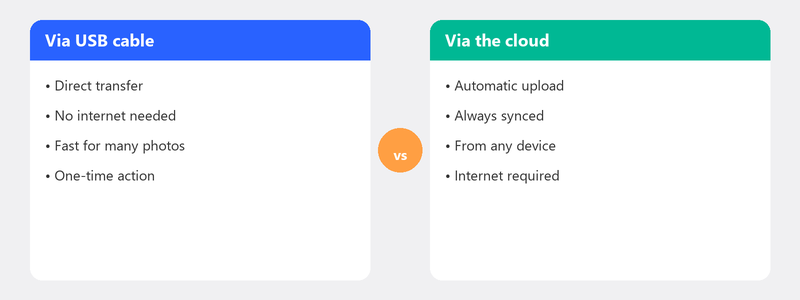
Cloud storage is the easiest way to automatically keep your photos safe. Google Photos (Android), iCloud (iPhone), and OneDrive (Windows) sync your photos automatically if you set it up. The advantage: you don't have to think about it and your photos are accessible from any device.
The downside: free storage is limited. Google offers 15 GB, iCloud 5 GB, OneDrive 5 GB. After that, you pay a few euros per month for extra space. For most people, it's more than worth it.
Photos from a camera or USB stick to your computer
Take the SD card out of your camera and insert it into your computer's SD card slot (or use a USB card reader). Windows recognizes the card as an external drive. Open File Explorer, navigate to the card, and copy the photos to a folder on your computer. A USB stick works the same way.
Organizing and storing photos after transfer
Create a clear folder structure. For example: Pictures, inside that folders per year, and per year folders per occasion (Holiday Spain 2025, Grandma's Birthday, etc.). This makes finding photos much easier. And set up a backup right away: read our article on creating a backup so your photos are never lost again.
We'll help you transfer and safely store your photos
Can't manage it, or would rather have someone else do it? Call us and a specialist will help you remotely with transferring your photos and setting up an automatic backup. Your photos will be safe without you needing to be tech-savvy.
Want to transfer and safely store photos? Call +31 10 268 7172 and we'll take care of it for you
Frequently asked questions
How do I transfer photos without a cable (wirelessly)?
Via cloud services: Google Photos (Android), iCloud (iPhone), or OneDrive. Enable automatic backup on your phone and the photos appear on your computer automatically when you're signed in with the same account.
Will my photos be deleted from my phone if I copy them to the PC?
No, copying creates a copy. Your photos remain on your phone unless you manually delete them there. Want to free up space on your phone? Only delete the photos after you've verified they're safely on your computer.
How much storage space do I need on my computer for photos?
One photo is about 3 to 5 MB on average. A thousand photos is 3 to 5 GB. Ten thousand photos: 30 to 50 GB. Videos take up much more space: one minute of HD video is about 100 to 200 MB.
Is it safe to put my photos in the cloud?
Yes. Services like Google Photos, iCloud, and OneDrive encrypt your photos and store them on heavily secured servers. The chance of losing photos in the cloud is much smaller than the chance of your phone breaking or being stolen.
How do I find my photos after transferring them?
If you copied them to a specific folder, open that folder via File Explorer. Windows Photos (the built-in app) scans the Pictures folder by default. Did you copy them to a different location? Add that location via the app settings.
Need help? We connect remotely.
A specialist looks at your computer remotely. The assessment is free.