Your computer contains your entire life. Bank details, passwords, personal photos, work documents, medical information. Yet most people protect their digital life less carefully than their front door...
Your computer contains your entire life. Bank details, passwords, personal photos, work documents, medical information. Yet most people protect their digital life less carefully than their front door. With these ten steps, you'll protect yourself against the most common digital threats. None of the steps are difficult, and together they make an enormous difference.
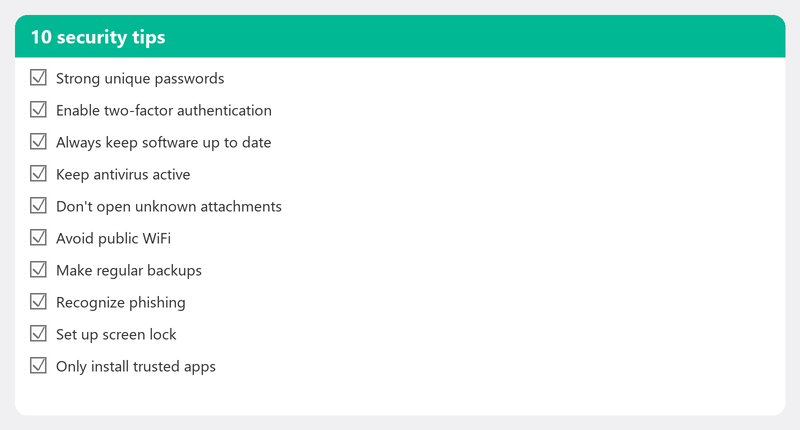
1. Keep Windows and software up to date
Every update contains security patches that close known vulnerabilities. Set up automatic updates (Settings, Windows Update) and restart your computer when an update asks you to. Outdated software is the number one way criminals get in.
2. Use a good antivirus program

Windows Defender is active by default on Windows 10 and 11 and scores comparably to paid alternatives in independent tests. For most people, it's more than sufficient. Make sure it's active (Windows Security, Virus & threat protection) and schedule a weekly full scan.
3. Use strong, unique passwords
The biggest security risk isn't a hacker cracking your password, but the fact that you use the same password everywhere. If that password leaks from one website, criminals have access to all your accounts. Use a password manager (Bitwarden is free, 1Password is paid but excellent) that generates and remembers a unique, long password for every account.
4. Enable two-factor authentication
Two-factor authentication adds an extra layer: in addition to your password, you need a code sent to your phone. Set it up on your email, bank, social media, and government services like DigiD. It takes five minutes per account and makes it virtually impossible for a hacker to get in, even with your password.
5. Recognize phishing and scams
Most digital attacks start with a fake message. Learn to recognize the signs: unexpected urgency, strange senders, suspicious links. Read our comprehensive article on recognizing phishing for all the details.
6. Make regular backups
A backup protects you not only against hardware failure but also against ransomware. If your files get encrypted by a virus, you can restore them from your backup instead of paying ransom. Read our article on creating a backup for the complete approach.
7. Use a secure WiFi network
Make sure your home network is secured with WPA2 or WPA3 (the most modern encryption). Change the default password of your router (it's on a sticker and anyone can guess it). Consider a separate guest network for visitors so they don't have access to your personal devices.
8. Be careful with public WiFi
The free WiFi network at a cafe or on the train is not secure. Everything you send there (passwords, emails, bank details) can theoretically be intercepted. Use a VPN (Virtual Private Network) when working on public networks, or limit yourself to reading news and save sensitive activities for home.
9. Watch what you download and install
Only download software from official sources: the manufacturer's website, the Microsoft Store, or trusted platforms. Free software from unknown websites regularly contains adware or malware. And pirated software is almost always infected.
10. Secure your phone and tablet
Don't forget your mobile devices. Set up a screen lock (PIN, fingerprint, or facial recognition). Keep apps and the operating system up to date. Be critical of app permissions: a flashlight app doesn't need access to your contacts.
We perform a security check remotely
Want to know if your computer is properly secured? Call us and a specialist will remotely check your update status, antivirus software, password practices, and backup settings. You'll get concrete advice to improve your digital security.
Remote security check? Call +31 10 268 7172 and we'll check everything
Frequently asked questions
Is Windows Defender sufficient as an antivirus program?
For most home users: yes. Windows Defender is integrated into Windows, is automatically updated, and scores well in independent tests. Want extra assurance? Run an occasional additional scan with Malwarebytes (free version).
What is a password manager and is it safe?
A password manager is a program that stores all your passwords in encrypted form behind one master password. It's safer than remembering passwords or writing them down, because it generates a unique, strong password for every account. Bitwarden is a reliable free option.
How do I know if my WiFi network is secure?
Click on the WiFi icon in your taskbar and view your network properties. There you'll see the security type: WPA2 or WPA3 is good, WEP or Open is unsafe. You can change this in your router settings.
Do I need to pay for a good virus scanner?
Not necessarily. Windows Defender is free and effective. Paid options like Bitdefender or Norton offer extra features (VPN, password manager, identity monitoring) but aren't necessary for basic protection.
How often should I change my passwords?
The current recommendation is: not regularly, but always after a data breach or if you suspect you've been hacked. The emphasis is on unique, strong passwords per account plus two-factor authentication, not on regular changes.
Need help? We connect remotely.
A specialist looks at your computer remotely. The assessment is free.