Imagine your laptop gets stolen tomorrow, or your hard drive crashes, or a virus encrypts all your files. Are your photos, documents, financial records, and memories safe? If the answer is no, then ...
Imagine your laptop gets stolen tomorrow, or your hard drive crashes, or a virus encrypts all your files. Are your photos, documents, financial records, and memories safe? If the answer is no, then today is the day to set up a backup.
What is a backup and why do you need one?
A backup is simply a copy of your files in another location. If your original files are lost, you can retrieve them from the backup. Without a backup, you're dependent on expensive professional data recovery services, and even those can't always save everything.
The 3-2-1 backup rule

Professionals use the 3-2-1 rule: keep three copies of your files (the original plus two backups), on two different types of media, with at least one in a different location (for example in the cloud). This protects you against virtually any scenario.
Option 1: Backup to an external hard drive
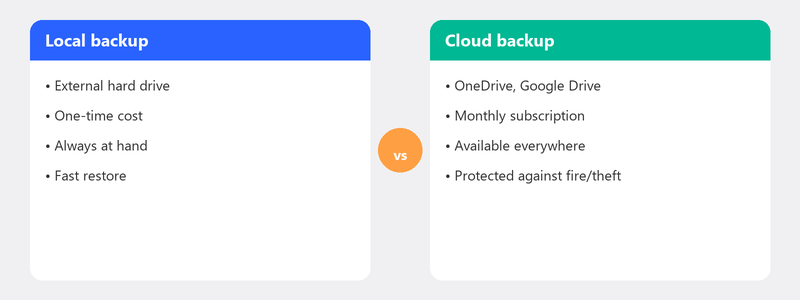
The most tangible method. Connect an external hard drive via USB and use Windows File History to make automatic backups. Go to Settings, System, Storage, Advanced storage settings, Backup options. Click Add a drive and select your external drive.
The downside: you need to connect the drive regularly, and if it's sitting next to your computer during a fire or burglary, you'll lose both.
Option 2: Backup to the cloud (OneDrive, Google Drive)
Cloud backup is the easiest option for most people. OneDrive (built into Windows) or Google Drive automatically syncs your folders to servers on the internet. Your files are accessible from any device and protected against local disasters.
OneDrive offers 5 GB of free storage, Google Drive 15 GB. For photos and videos, you may need a paid subscription (Microsoft 365 gives 1 TB with a subscription of about 7 euros per month).
Setting up automatic backup in Windows
The most important thing about a backup is that it runs automatically. A backup you have to start manually is one you'll guaranteed forget. Activate File History for your external drive, enable OneDrive sync for your Desktop, Documents, and Pictures folders, and you're protected without ever having to think about it.
What should and shouldn't you back up?
Focus on files you can't recreate: documents, photos, videos, financial records, passwords. You don't need to back up programs: you can download and reinstall those. You don't need to back up Windows itself either.
We'll set up your backup for you
Setting up a backup takes about half an hour in most cases. Call us and a specialist will configure your backup remotely. We verify it works correctly and explain how you can keep an eye on it.
Want us to set up your backup? Call +31 10 268 7172 and it's done within 30 minutes [link to /remote-help]
Frequently asked questions
How often should I make a backup?
If you have automatic backup set up (via File History or cloud sync), you don't need to think about it: it happens continuously or daily. Using a manual backup on an external drive? Then weekly is a good rhythm.
Is a cloud backup secure?
Yes. Services like OneDrive, Google Drive, and iCloud encrypt your data during transfer and in storage. Your data is stored on heavily secured servers. The risk of losing files through the cloud is many times smaller than with a local drive.
How much storage space do I need for a backup?
That depends on how many files you have. For documents only, a few GB is enough. With photos and videos, it can add up to hundreds of gigabytes. An external drive of 1 TB (about 50 euros) is more than enough for most people.
Can I restore a backup on a different computer?
Yes. Cloud backups are device-independent by definition: log in and your files are there. A File History backup on an external drive can also be restored on a new computer, as long as you connect the drive.
What's the difference between syncing and backing up?
Syncing keeps files on multiple devices identical: delete a file on your computer and it disappears from the cloud too. A true backup saves a copy at a certain point in time, even if you delete the original. The safest approach is a combination of both.
Need help? We connect remotely.
A specialist looks at your computer remotely. The assessment is free.